
Before you start #
Availability and permissions
- A HIVE account, an eligible website plan and permission to edit the selected website.
Have these ready
- Prepare a short business description, services, public contact details, your logo and licensed photos.
Start with the right website #
- Open My websites. Use Add a website for an additional website and review the plan and billing before agreeing. For your first website, use Start your website and complete the plan/account steps offered.
- Select the intended website, then open Setup. Your progress is saved for that website; another site has separate content and billing.
Tell HIVE about the business #
- In Your business, enter the business name, description, products or services and public contact details. Use details customers may see.
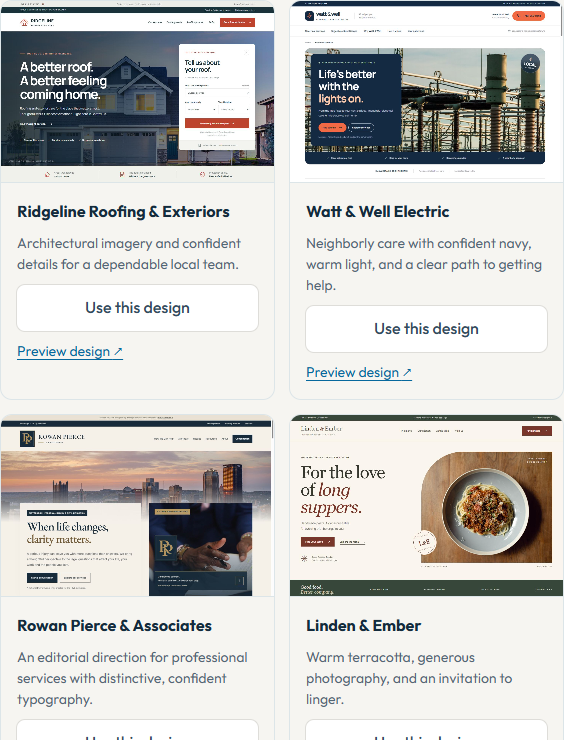
- Choose a design. Open previews, then select the template that fits your business. Store templates need the appropriate ecommerce entitlement.
- In Your website plan, review page names and structure. The standard allowance is three editorial pages; Pages+ belongs to the selected website.
Add branding, words and pictures #
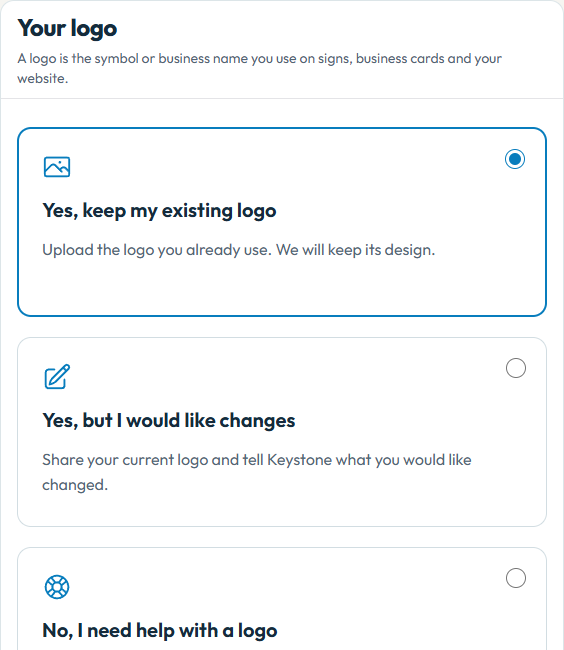
- In Branding & Brand Guide, choose an existing logo or the available logo-help option, then review colors, fonts and the Brand Guide. A logo request is separate from approving a supplied design.
- In Pages & content, complete each page’s heading, introduction and search details. AI Assisted content needs your review; check claims, spelling and contact details.
- In Photos, choose appropriate images and review where each is used. Upload only images you own or may use.
Preview, save and publish #
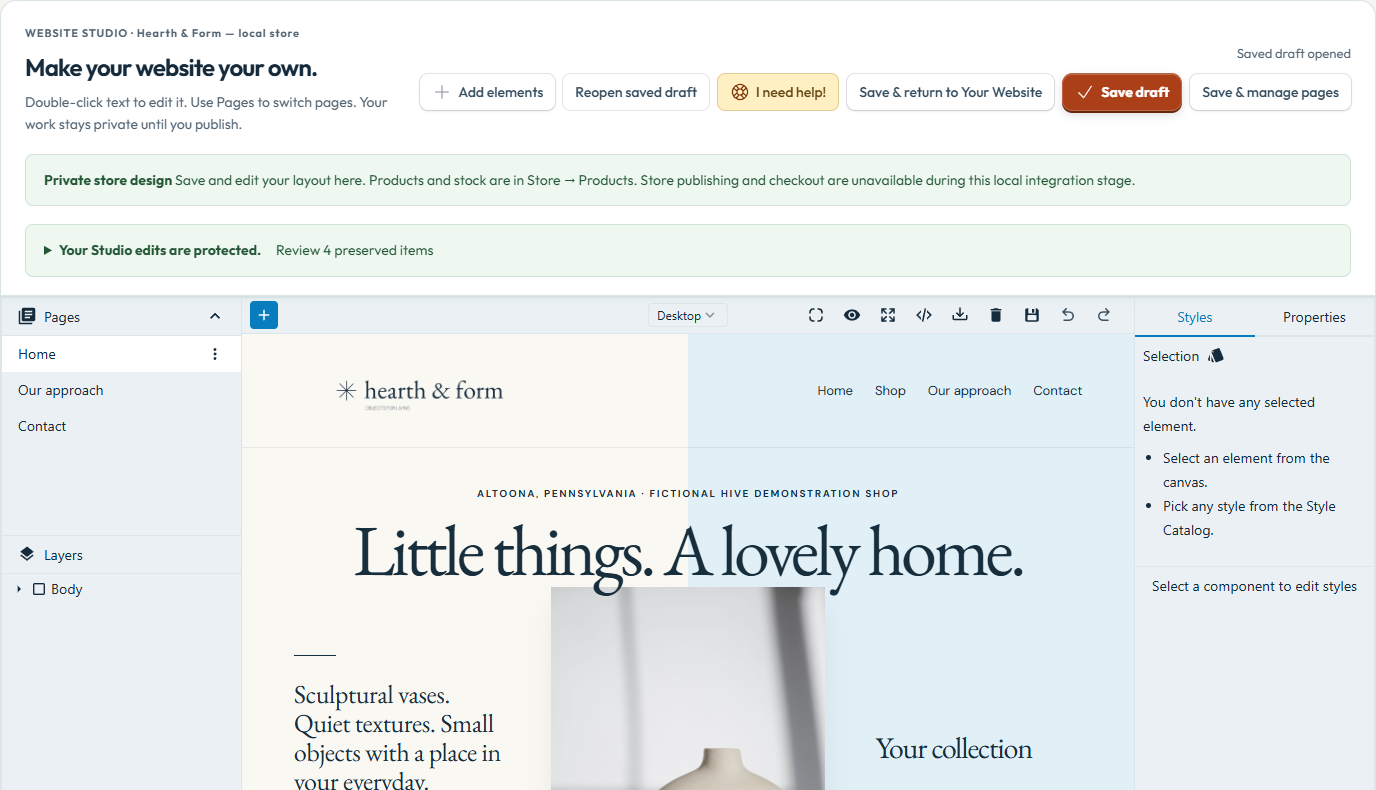
- Use Edit the whole website to open Studio. Review desktop and mobile previews, navigation and your contact form. Save draft before leaving.
- In Website address, choose the available HIVE address or follow the custom-domain guide. Domain connection is a separate process.
- In Review & publish, confirm your own final check. Continue to publishing opens Studio. Ask Keystone to review (optional) is available if you want our help; Keystone approval is not required for ordinary self-service publishing.
- In Studio, review the publishing dialog and choose Publish website when ready. Later saved edits remain private until you explicitly update the live site. Store selling and provider readiness have separate checks.
What success looks like #
Your saved draft reopens with your work. After a successful explicit publication, HIVE displays the visitor address and live publication status.
If something goes wrong #
- Publishing unavailable? Review the shown plan, export, permission or store-readiness reason. Saving a draft does not resolve those requirements.
- A save conflict means another session changed the site. Keep your text, reopen the current saved version and reapply your intended change.
To share a specific section, use the # link beside its heading and copy the address. To save or print this guide, use your browser’s Print command.