
Before you start #
Availability and permissions
- Permission to manage this website and access to its domain’s DNS host.
Have these ready
- Know your domain name and where its DNS is managed. Save a copy of current DNS records and identify any email service before approving changes.
Find where your DNS lives #
A registrar is where you bought the domain. A DNS host controls the records directing its traffic. They can be different companies: a GoDaddy-registered domain might use Cloudflare DNS.
Your HIVE-provided madebyhive.site address and your own custom domain are different addresses for the same published site. A domain connection does not replace or rebuild your saved Studio draft.
Get this website’s instructions #
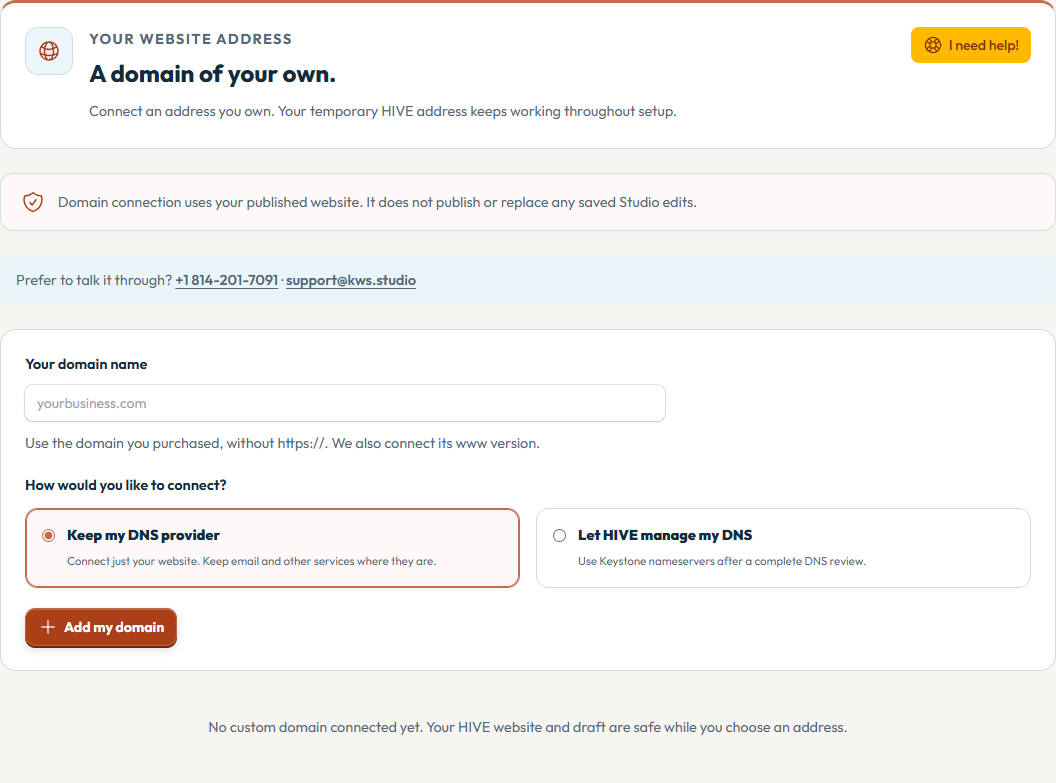
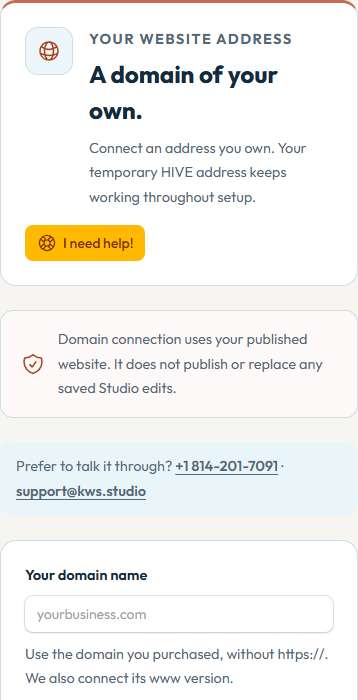
- Choose the correct website, then open Your website → Website address (or the Website address step in Setup).
- Add the domain you own and review the connection method and records HIVE displays. Use those exact hostnames, types and values; do not copy an IP from another website or a general article.
- Complete ownership verification using the TXT record HIVE supplies. Adding this record proves control; it does not yet move web traffic.
Use a supported automatic connection #
The current automatic provider connection is Cloudflare. A domain’s registrar being GoDaddy does not mean HIVE can automatically edit GoDaddy-hosted DNS.
- If HIVE offers Connect with Cloudflare and your DNS is there, sign in with the account that controls the intended zone. Review the requested access.
- Return to HIVE and review the proposed record changes. Approve only the intended web records after checking the backup and warnings. Decline if you are unsure.
- Keep email MX records, email-related TXT records and unrelated services intact. Do not approve a change to an unrelated domain.
Use the manual method #
- If automatic connection is unavailable, open the manual instructions and add the supplied ownership and web records at your actual DNS host.
- Review both the root domain (example.com) and www. Remove or replace conflicting web records only as instructed; do not delete unrelated records.
- If you deliberately choose HIVE-managed DNS, follow the reviewed nameserver migration instructions shown for that flow. Copy and verify all existing service records first. Changing nameservers moves DNS management for the whole domain; it is not the default fix for a pending record.
Verify and activate HTTPS #
- Return to HIVE and run the available verification check. Wait for DNS changes to become visible if the status is still pending.
- Once DNS and ownership checks pass, review the activation dialog. Activate HTTPS and the main address only when you intend visitors to use it.
- Open the main address and www in a private browser tab. Check the certificate, homepage, navigation and contact link. Keep the temporary address until you have confirmed the connection.
What success looks like #
HIVE reports the domain connected with HTTPS, and the selected main address opens the correct published website.
If something goes wrong #
- Pending ownership: check the TXT host name, value and DNS zone. Some DNS hosts append your domain automatically.
- Pending web routing: check conflicting A/AAAA/CNAME records, proxy settings and whether you edited the real DNS host. Allow propagation before repeated changes.
- HTTPS pending: finish ownership and web routing first, then recheck. Contact support with the domain and visible error, without provider passwords.
To share a specific section, use the # link beside its heading and copy the address. To save or print this guide, use your browser’s Print command.