
Before you start #
Availability and permissions
- Website editing permission. Logo approval and Brand Guide actions depend on the current saved branding state.
Have these ready
- Use a logo you may publish and identify your business colors and preferred fonts.
What to do #
- Select the website, then open Your website → Brand Kit. During setup, use Branding & Brand Guide.
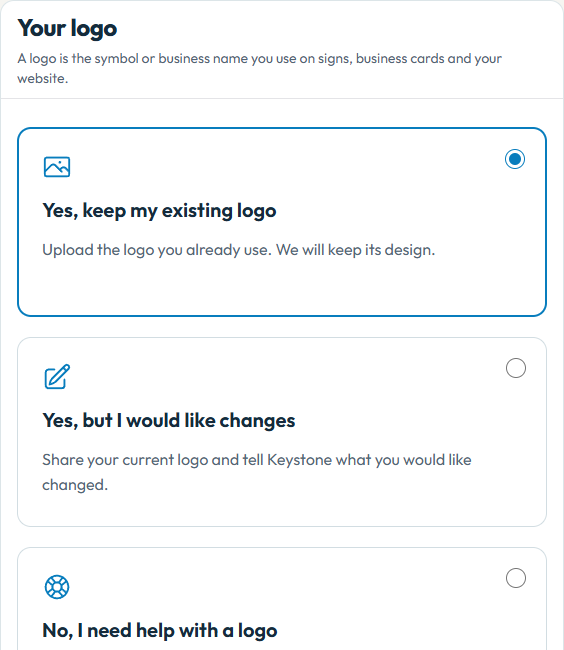
- Review the existing logo and available upload or logo-help choices. Do not replace an approved logo with an unrelated image.
- Choose the supported website colors and fonts. Check the preview for readable text and buttons on light and dark areas.
- Review your Brand Guide and complete its approval action when the actual saved guide is ready. A request for Keystone logo work remains a separate request.
- Save changes, reopen Studio and check the homepage, other pages and store pages if applicable. Preview before updating the live website.
What to know #
Display preferences change HIVE’s dashboard; your website Brand Kit changes the customer-facing website.
Saved brand changes are draft work until the relevant website update is published. Keep custom page styles in mind when checking the result.
What success looks like #
Your saved branding reopens and looks consistent in the intended draft.
If something goes wrong #
- Logo not ready? Use the available business-name presentation or ask Keystone for help; do not mark an unfinished logo approved.
- Unexpected contrast? Adjust the supported palette and preview every affected section before publishing.
To share a specific section, use the # link beside its heading and copy the address. To save or print this guide, use your browser’s Print command.