
Before you start #
Availability and permissions
- An email address you can access. Registration or an invitation must be available.
Have these ready
- Have your business name ready. Use your own email, not a shared customer address.
Create your sign-in #
A HIVE account lets you manage websites. Creating an account alone does not publish a website or activate store payments.
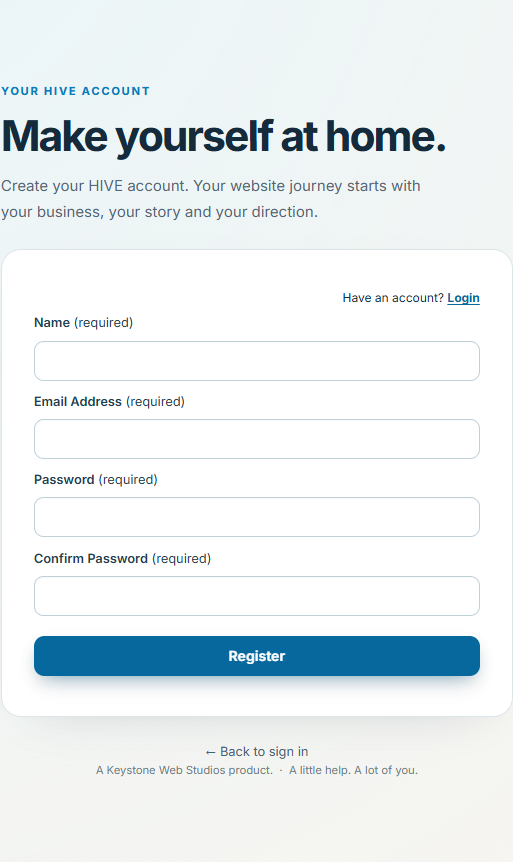
- Choose Log in in the HIVE header. If you are new, choose Start your website to begin the account/plan journey. The registration screen is also available from the Register link below when registration is open.
- Enter Name, Email Address, Password and Confirm Password. Choose Register. Use a unique password and keep it private.
- If HIVE asks you to verify your email, open the verification message and follow its link. Check junk mail and use the verification screen’s resend option if needed.
- If you received an invitation, open that invitation and sign in using the invited email. Accept only invitations you recognize.
Sign in or recover access #
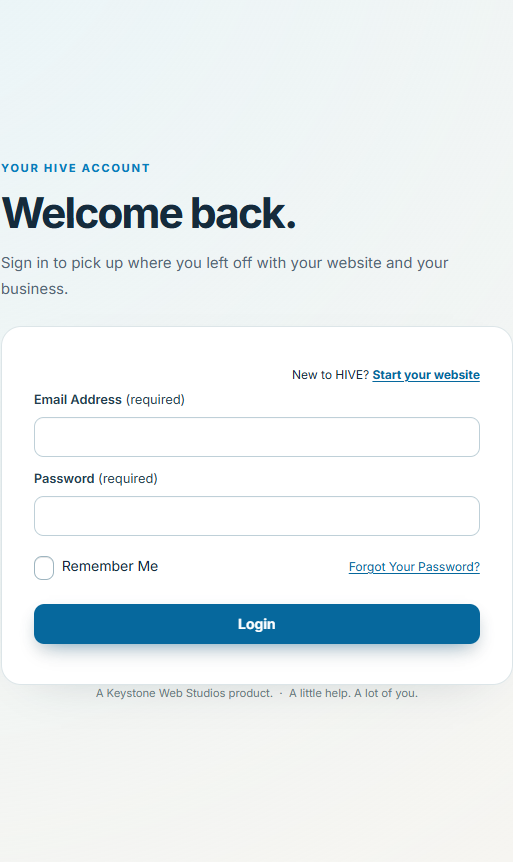
- Open Log in and use the email associated with your account. Complete any verification or security challenge shown.
- Use Forgot your password? on the sign-in screen to request a reset. Open the newest reset message; expired links need a new request.
- Open Account in the dashboard to find your profile and logout controls. Always sign out on a shared computer.
Choose a website #
Your account can belong to more than one workspace. The website selector changes which business you are managing; check it before editing.
- Open the dashboard and choose the intended website in the website selector or My websites.
- If you have no website yet, follow Create your first website. If registration, your invitation or a paid plan is unavailable, contact Keystone rather than creating duplicate accounts.
What success looks like #
You can sign in and select the correct website. A published website has its own visitor address, separate from your HIVE dashboard.
If something goes wrong #
- No verification/reset email? Check the spelling of your address, junk folder and most recent message. Ask support if it still does not arrive; never send your password.
- No website or permission? Ask the workspace owner to confirm the invitation and role. Do not assume creating a second account restores access.
To share a specific section, use the # link beside its heading and copy the address. To save or print this guide, use your browser’s Print command.