
Before you start #
Availability and permissions
- Catalog-management permission. Only the owner changes store measurement preferences.
Have these ready
- Count physical units and decide whether you are receiving stock, removing damage or correcting a count.
What to do #
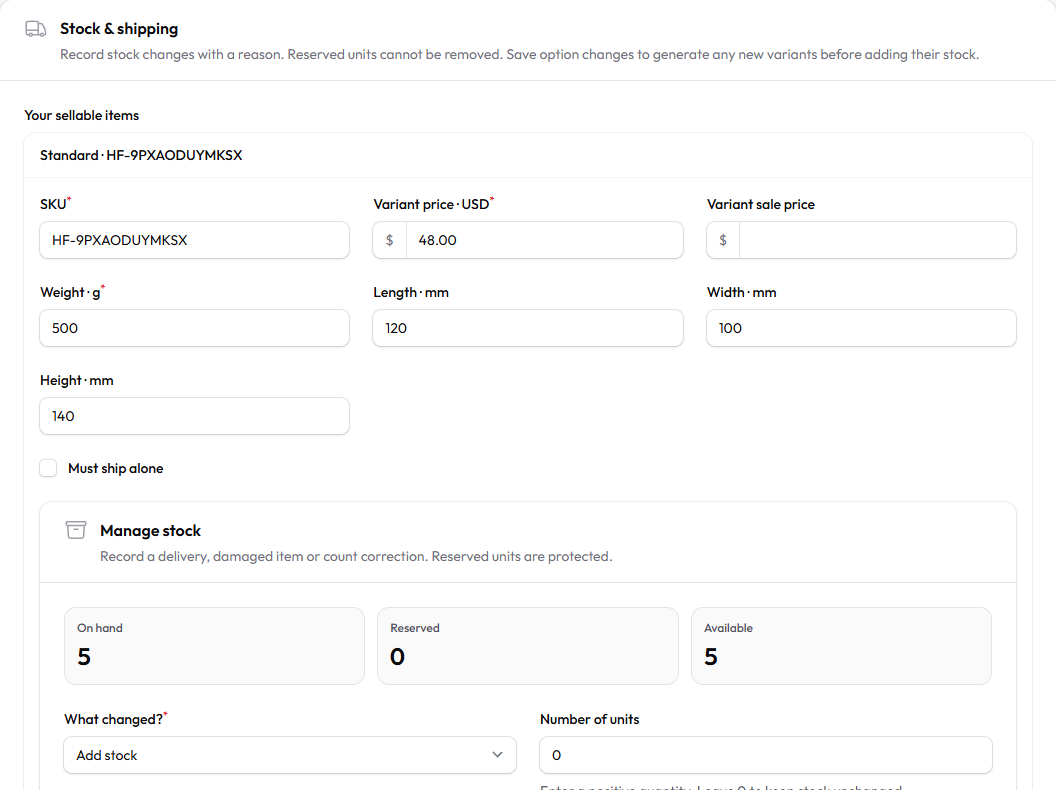
- Open Store products → Edit product → Stock & shipping. For variable products, locate the correct sellable combination.
- Review On hand, Reserved and Available. Reserved units are committed to an unfinished checkout; they are not free stock.
- In Manage stock, choose What changed? → Add stock or Remove stock. Enter a positive Number of units and a clear Reason. Zero keeps the count unchanged.
- Choose Save product and review the resulting available quantity. Do not submit the same adjustment again unless a separate physical change occurred.
- To change display units, the owner opens Settings & connections → Change measurement units. Choose Metric or Imperial and save. Reopen product and package fields to confirm their labels.
What to know #
Switching units changes display, not physical measurements or historical orders. Metric uses grams and millimeters; imperial uses ounces and inches.
Removing stock cannot consume reserved units. A refund does not automatically mean the item is back in sellable inventory.
What success looks like #
The saved movement has a reason and the intended item’s available count is correct.
If something goes wrong #
- Reserved stock looks stuck? Review the related checkout/payment state with support. Do not release it by falsifying stock or deleting order history.
To share a specific section, use the # link beside its heading and copy the address. To save or print this guide, use your browser’s Print command.