
Before you start #
Availability and permissions
- An enabled HIVE Store and permission to manage its catalog. Live selling requires separate activation; demo stores remain test-only.
Have these ready
- Prepare accurate USD prices, SKUs, available stock, unpacked measurements and licensed JPG, PNG or WebP product photos.
Create the listing #
- Select the correct website and open Store → Products (the Store products screen). Choose Add product.
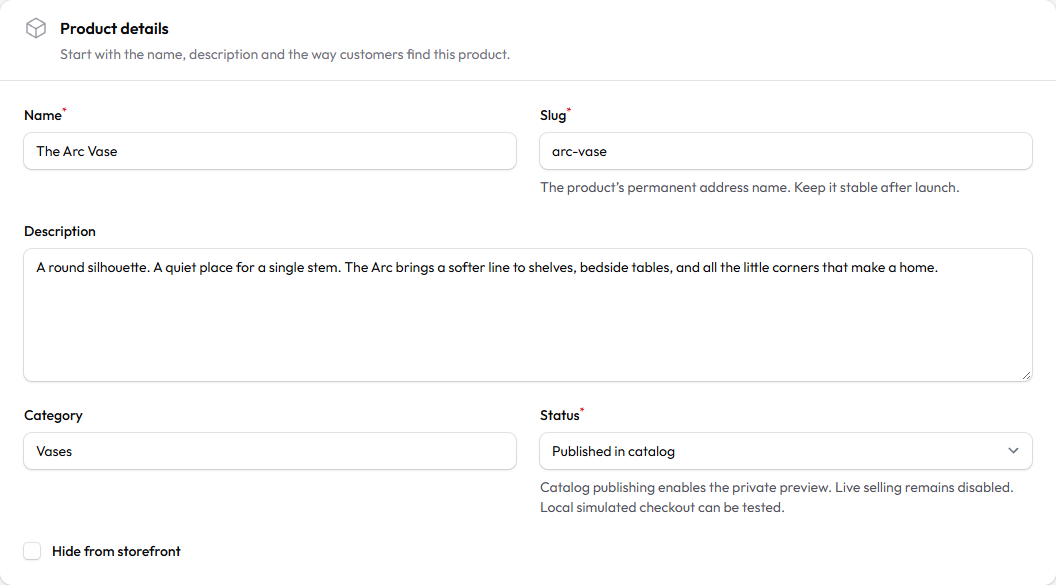
- Enter the product name, description and category. Choose simple for one sellable item or variable for options such as size and color.
- Set the product status and catalog visibility deliberately. Draft is private; hidden removes catalog visibility; archived retains history and is excluded from the normal list. Published product status does not activate live store payments.
- Open Edit product for the full-page editor. Its sections include Product details, Pricing & options, Photos & gallery, Stock & shipping and Search & SEO.
Set prices and variations #
A parent product is one listing; variants are the sellable combinations beneath it. The limits are 25 non-archived parent products (including drafts and hidden products), three option types per product, 50 variants per product and 500 variants per store.
- For a simple product, enter Price and an optional lower Sale price in USD. Enter normal decimal amounts, not cents, in product price fields.
- For a variable product, define option names and values. Save option changes to generate new variants, then check each combination’s SKU, price, weight and stock.
- A product needs a valid active sellable variant and available stock. Do not use a zero price as an unavailable marker.
Add photos and shipping data #
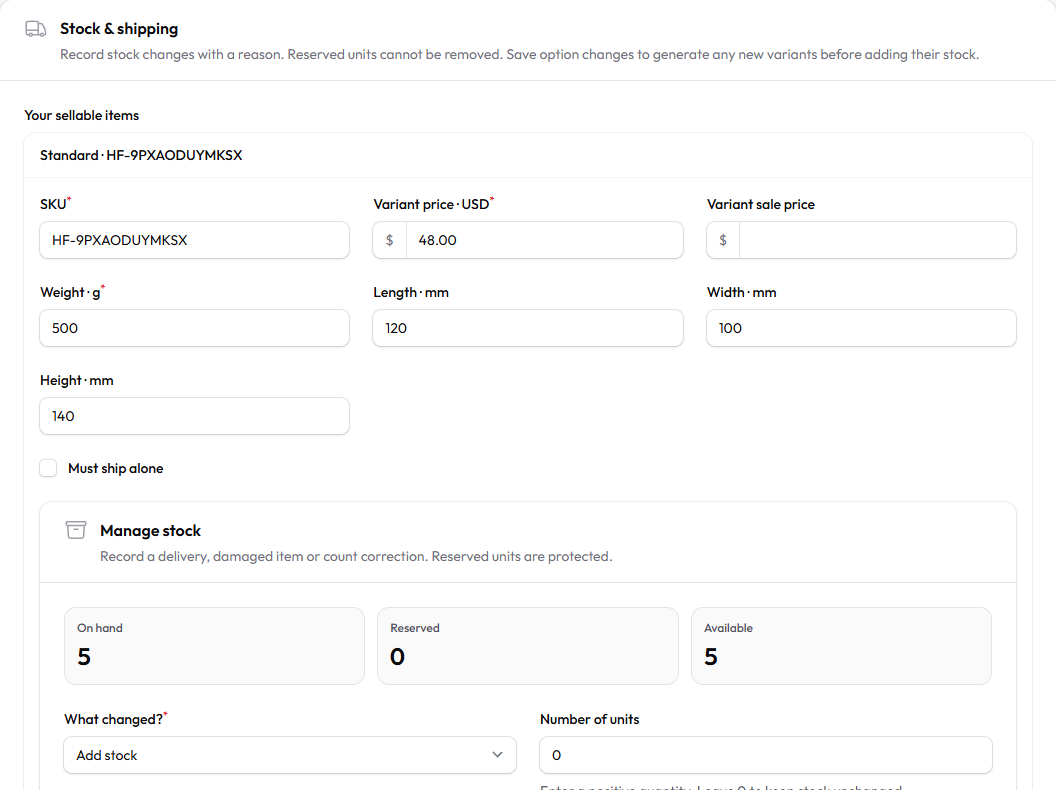
- In Photos & gallery, choose Replace the main photo and Add gallery photos. Leave replacement empty to keep the existing image. Use JPG, PNG or WebP up to 5 MB each and at most six gallery images.
- In Stock & shipping, use Manage stock → What changed? → Add stock or Remove stock. Enter a positive Number of units and a Reason for every adjustment. Reserved units are protected.
- Review unpacked weight and dimensions, and mark Must ship alone where appropriate. Set this website’s metric or imperial preference in Settings & connections → Change measurement units.
Preview search and sharing #
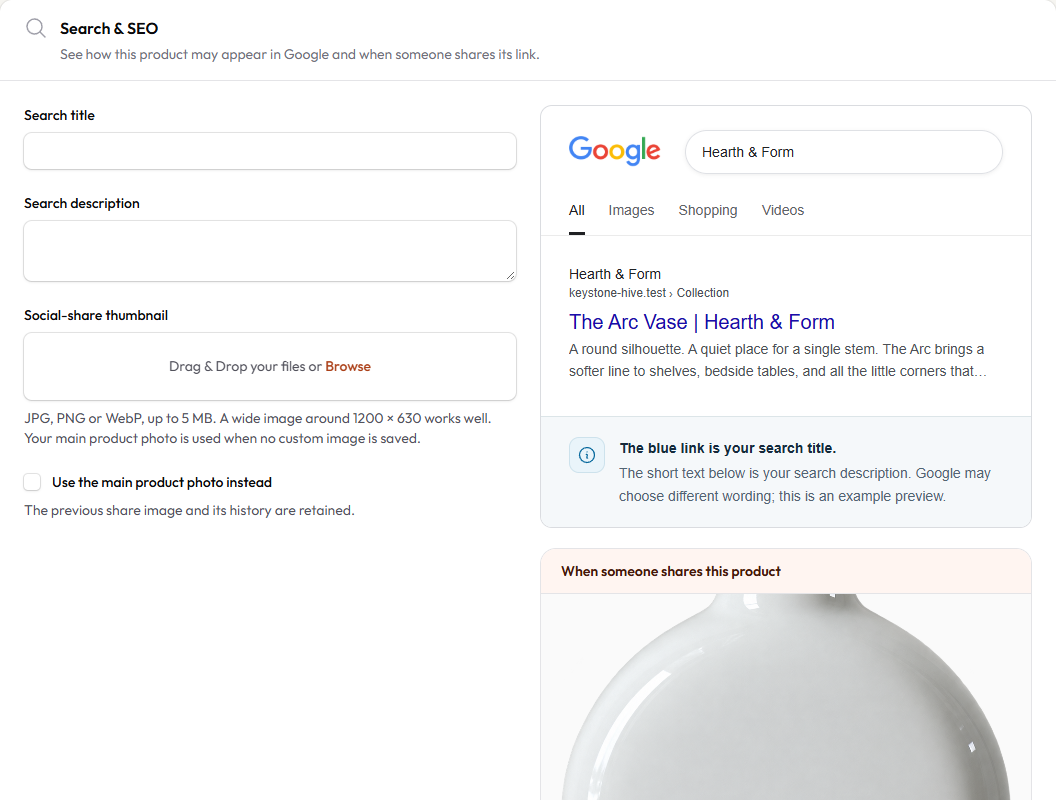
- Open Search & SEO. Set a useful search title and description that name the product and business. The Google-style preview is an example; search engines can show different wording.
- Choose a Social-share thumbnail or Use the main product photo instead. A wide image around 1200 × 630 is a useful starting point.
- Choose Save product. Reopen it to confirm the saved photo, options, prices and stock. Check its storefront product page using the appropriate authorized preview.
What success looks like #
The listing reopens correctly and the storefront shows only intended, available products. Catalog and inventory updates use saved store data; they do not require rebuilding the website design.
If something goes wrong #
- No Store navigation? The selected website may be a standard site, or your role lacks store access. Ask its owner about an eligible upgrade.
- Variant not available? Check active combinations, price, stock and reserved units. Archived/hidden products are not made available by changing website content.
- Save conflict? Keep your intended edits and use Reopen saved version only when ready to replace unsaved entries with the current saved product.
To share a specific section, use the # link beside its heading and copy the address. To save or print this guide, use your browser’s Print command.