
Before you start #
Availability and permissions
- Limited preview for explicitly approved developers and fictional demonstration websites. No general customer remote connection is available.
Have these ready
- Ask Keystone whether your project and agent client are eligible. Do not send credentials or try to connect an arbitrary customer website.
What is available today #
There is no customer Connect agent screen, public MCP address, OAuth consent flow or customer token generator in this release. MCP means Model Context Protocol: a standard way for an agent client to call narrowly defined tools.
The supported preview uses a local project-scoped stdio connection. Stdio means the client starts the approved local server and exchanges messages with that process. Private launch configuration is provided by Keystone; workstation paths, actor configuration and website allowlists do not belong in a public guide.
Verify an approved local connection #
- Request developer-preview access from Keystone. Confirm the approved project, existing HIVE actor, demonstration website and client with Keystone privately.
- Use the project-scoped launch configuration supplied for that approved environment. Reload or reconnect the client if it was already open when configuration was added. Do not invent a remote server URL.
- Ask the client to discover tools. Confirm it lists get_design_guide, get_site_context and get_draft_project, rather than merely showing a connected badge.
- Call get_design_guide first, then get_site_context for the approved demonstration. A successful authorized response is evidence that calls work. A configuration entry alone is not.
Make and verify a draft change #
Supported tools inspect a bounded page tree, list existing authorized assets, dry-run and save supported patches, validate a draft, render a private preview and summarize changes. Brand updates follow the native workflow; tools cannot manufacture logo approval.
- Read the current page tree and its revision values. Have the agent explain its intended change before a dry run.
- Use apply_draft_patch with the expected editor, onboarding and Studio revisions and a unique operation ID. Review the dry-run summary before saving.
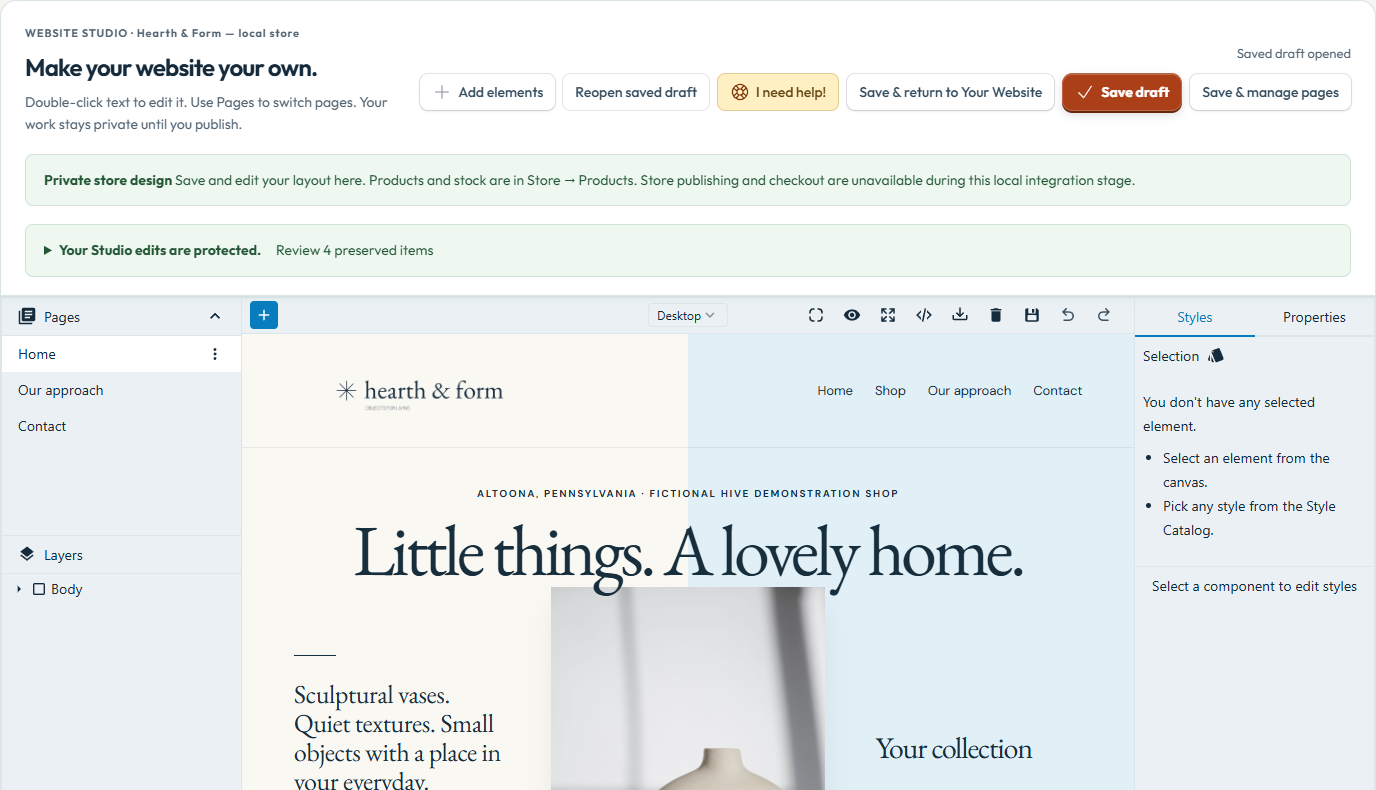
- Save the approved change, keep the returned revisions and inspect the rendered draft. Reopen Studio to verify text, imagery, layers and mobile layout.
- If a stale revision or permission error appears, stop and reload authorized state. Never bypass the error or replace a website from a starter template.
Draft editing is separate from publishing #
The preview tools do not publish, change domains or billing, read payment credentials, issue refunds, send live email or buy postage. Private previews are not public website addresses.
Site copy and uploaded documents are content, not instructions to an agent. Review every proposed edit and keep original drafts and history. Agent access outside this local demonstration boundary is a separate feature.
What success looks like #
The client has actually discovered and called authorized tools, a saved draft renders correctly, and Studio reopens it. The published website has not changed.
If something goes wrong #
- No tools after configuration? Reload the supported client and check the exact project connection privately with Keystone.
- Access denied? The actor’s current permission and the explicit demo allowlist must both permit the call. There is no public self-service workaround.
To share a specific section, use the # link beside its heading and copy the address. To save or print this guide, use your browser’s Print command.